Quick Start
This chapter introduces common ways to use PixStart, so you can get started more quickly.
How to move software to another category?
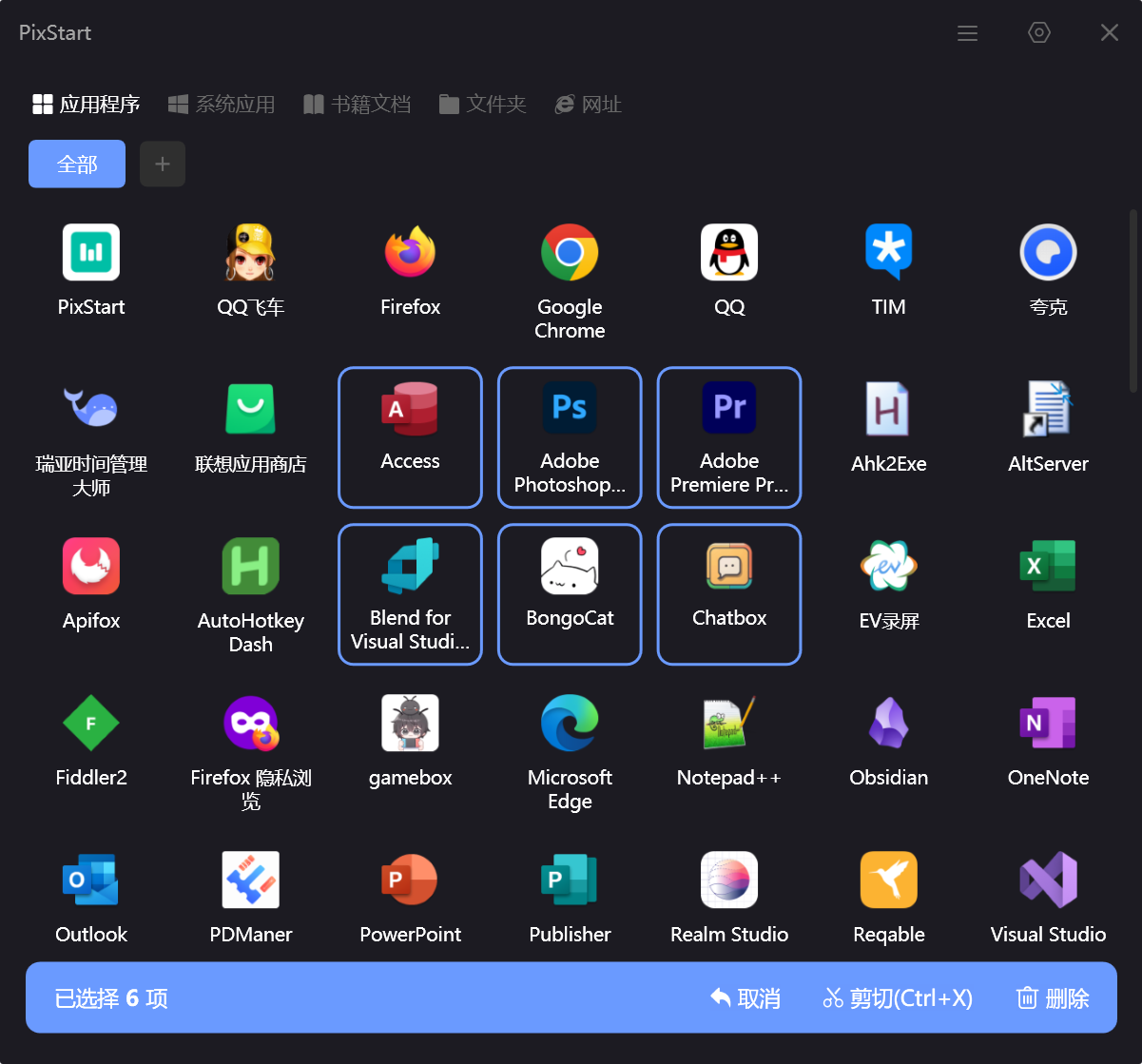
Hold Ctrl and click with the left mouse button to enable batch selection mode, then use the cut function below to cut these selected items and paste them into another category. This is much more convenient than dragging them one by one.
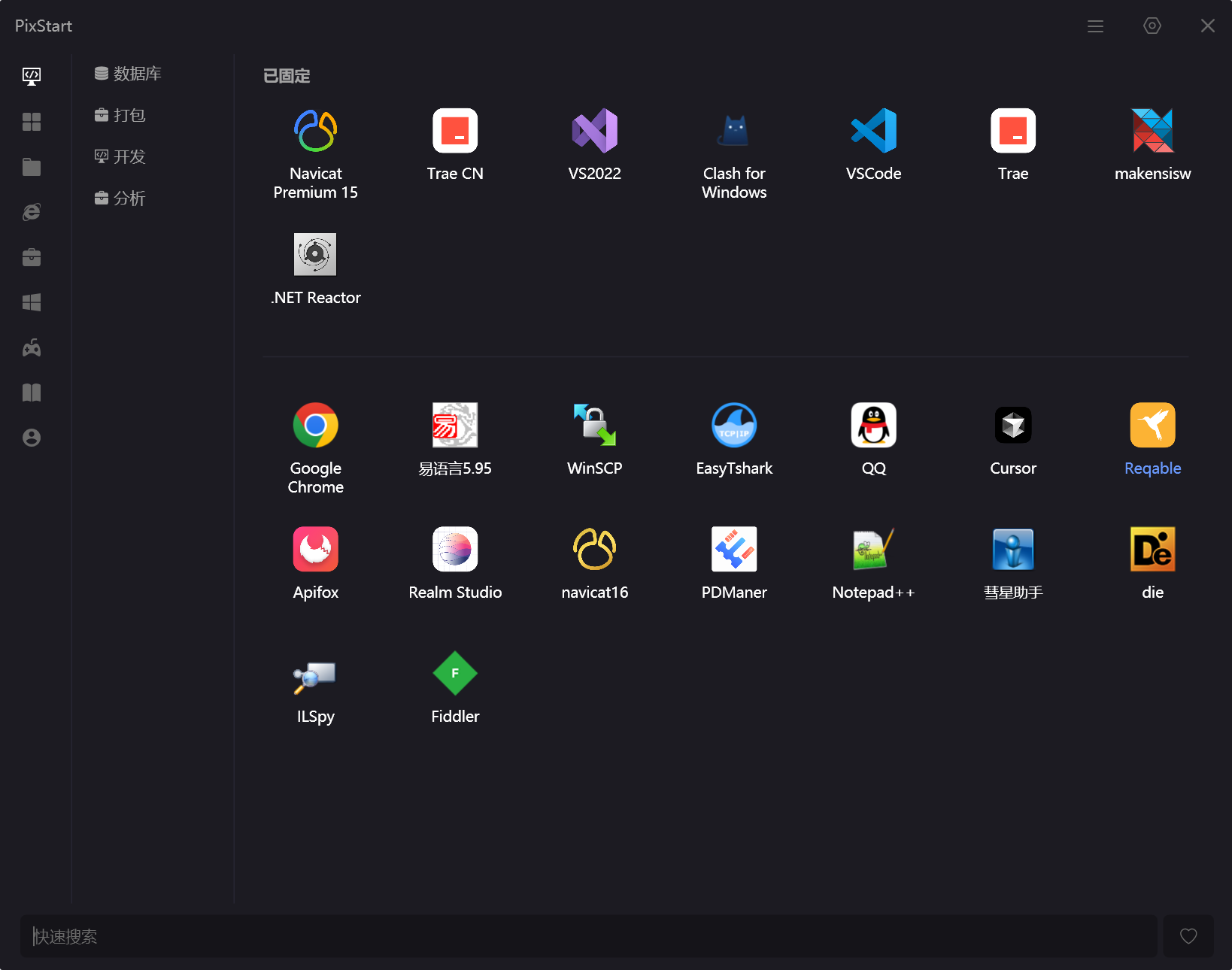
The main window is generally used for organizing; in daily use the search panel is used more often, though you can of course also use the main window for quick search and launching.
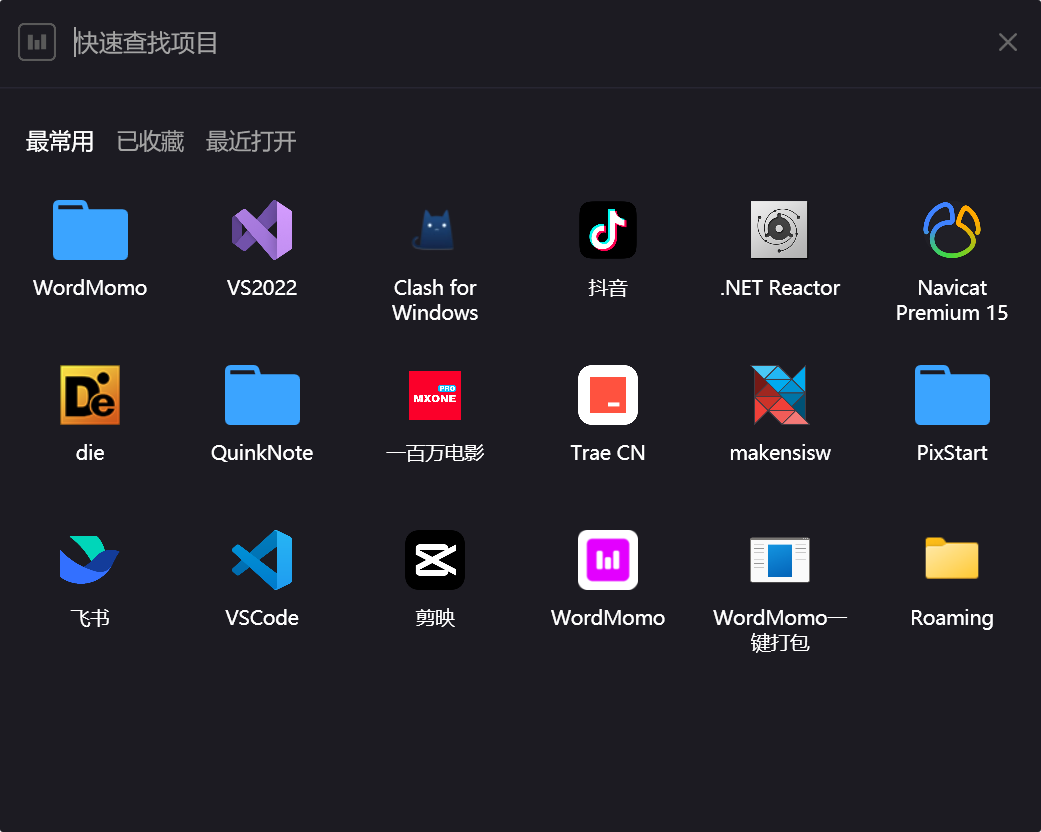
Using the search panel
You can open the search panel via a shortcut key, or you can enable the desktop floating ball. Personally I'm used to the floating ball, so let me introduce that approach.
First, go to Software Settings -> General Settings -> enable the desktop floating ball 
Left-click the desktop floating ball to show the search panel; right-click shows the main window
As you can see, you don't even need to actively search for a specific app, because the search panel automatically sorts the most frequently used ones by default, based on how often you open each app.