
Floating Keyboard
The Floating Keyboard: enable it in the software's shortcut key settings, then you can bind an item/app to each key, and click the corresponding key to open the corresponding item/app.
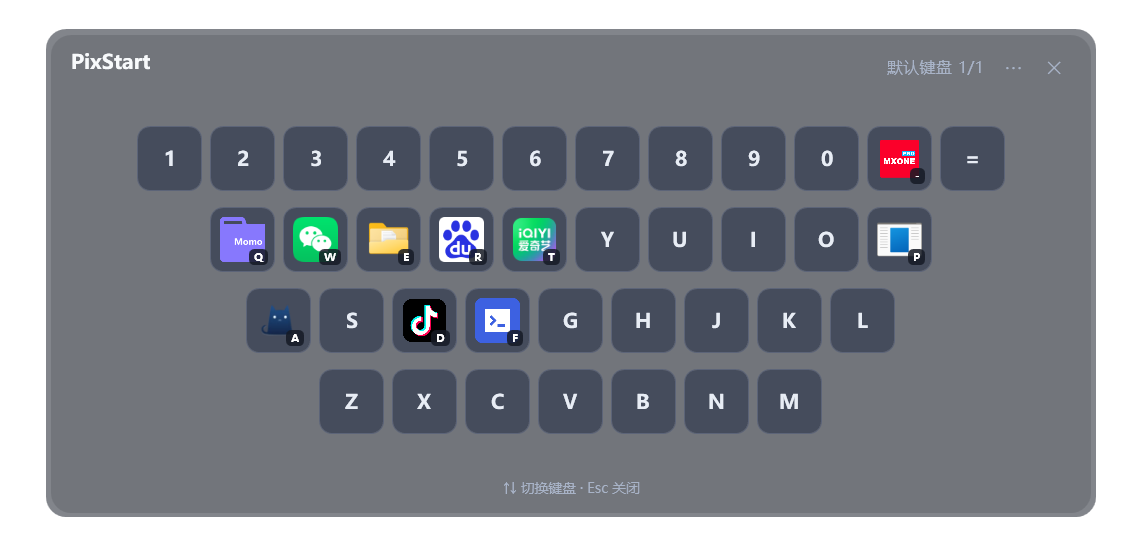
When one keyboard layout isn't enough, you can create multiple keyboards and switch between them with the ↑↓ arrow keys or the mouse wheel.
Auto-recognize environment to match keyboard
Imagine you've created multiple keyboard layouts — Keyboard Layout 1, Keyboard Layout 2, Keyboard Layout 3. When you use the shortcut key to bring up the Floating Keyboard while developing a project in VSCode, the current project's keyword is obtained from the VSCode window title. For example, if you're developing PixStart, the title of the currently focused window will contain PixStart and similar text.
Then we can set it to automatically show the keyboard layout related to the PixStart project — a layout containing folders, files or apps related to this project.
1. Get window information
When you bring up the Floating Keyboard in the target window using the shortcut key, you can click the Copy icon in the lower-left corner to copy the currently captured window information to the clipboard.
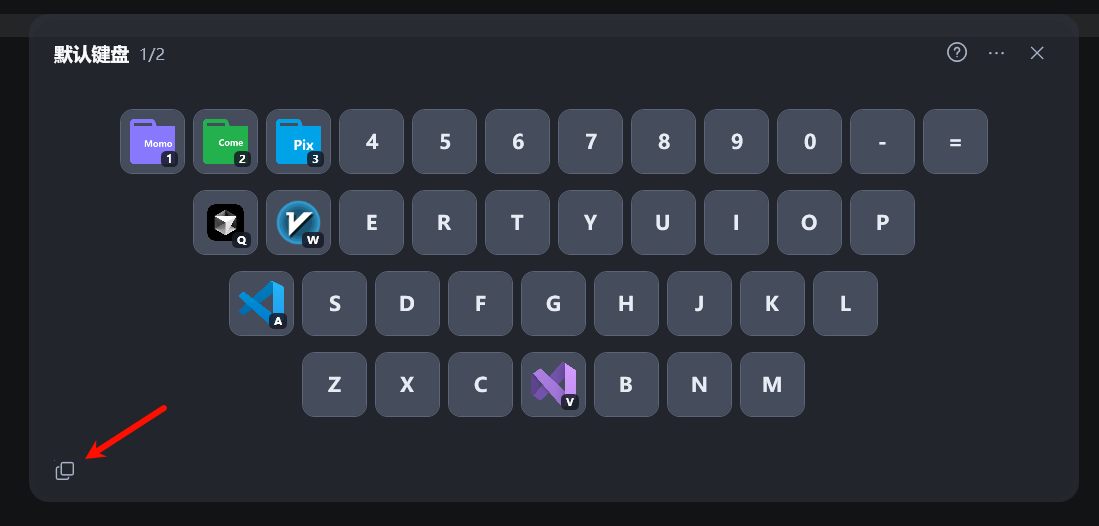
Let's look at the copied information below: class is the window's class name, and title is the window's title.
class=Chrome_WidgetWin_1
title=● fastkeyboard.md - PixStart-Doc - Visual Studio Code
You can see the title contains PixStart and similar text. Now we can do a simple match binding: switch to the target keyboard layout, click the More menu in the upper-right corner -> Edit environment match.
A dialog will pop up; enter PixStart and click OK to bind.
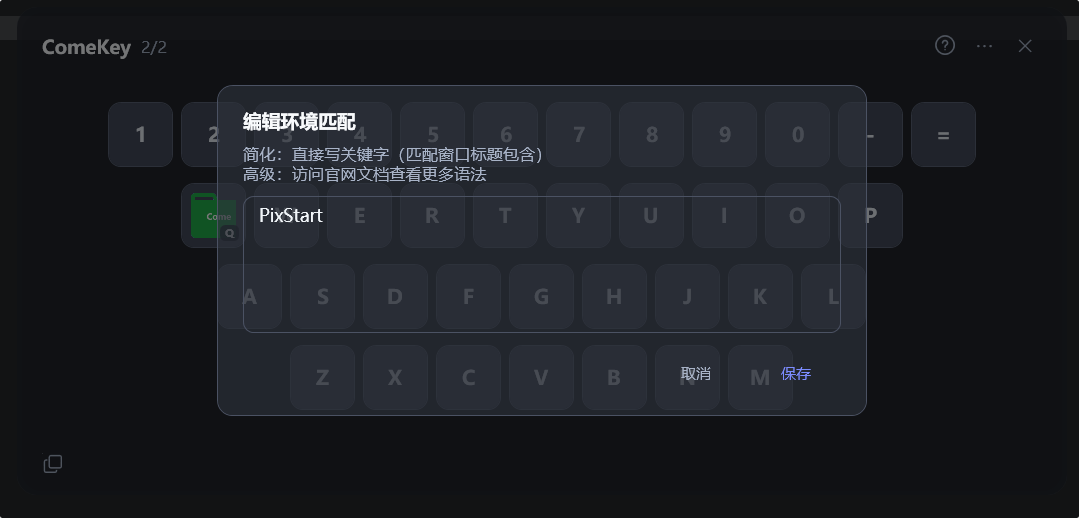
This simple matching method determines whether the currently focused window contains the keyword; if so, the match succeeds and this keyboard layout is shown.
2. Other commands
Besides the common simple matching above, you can also use the following syntax matching.
Use contains for containment matching
title.contains("PixStart")Use end for suffix matching
title.end("Visual Studio Code")Use start for prefix matching
title.start("● fastkeyboard.md")Use equal for exact matching
title.equal("● fastkeyboard.md - PixStart-Doc - Visual Studio Code")Of course class also supports these matching methods, but generally title is sufficient.